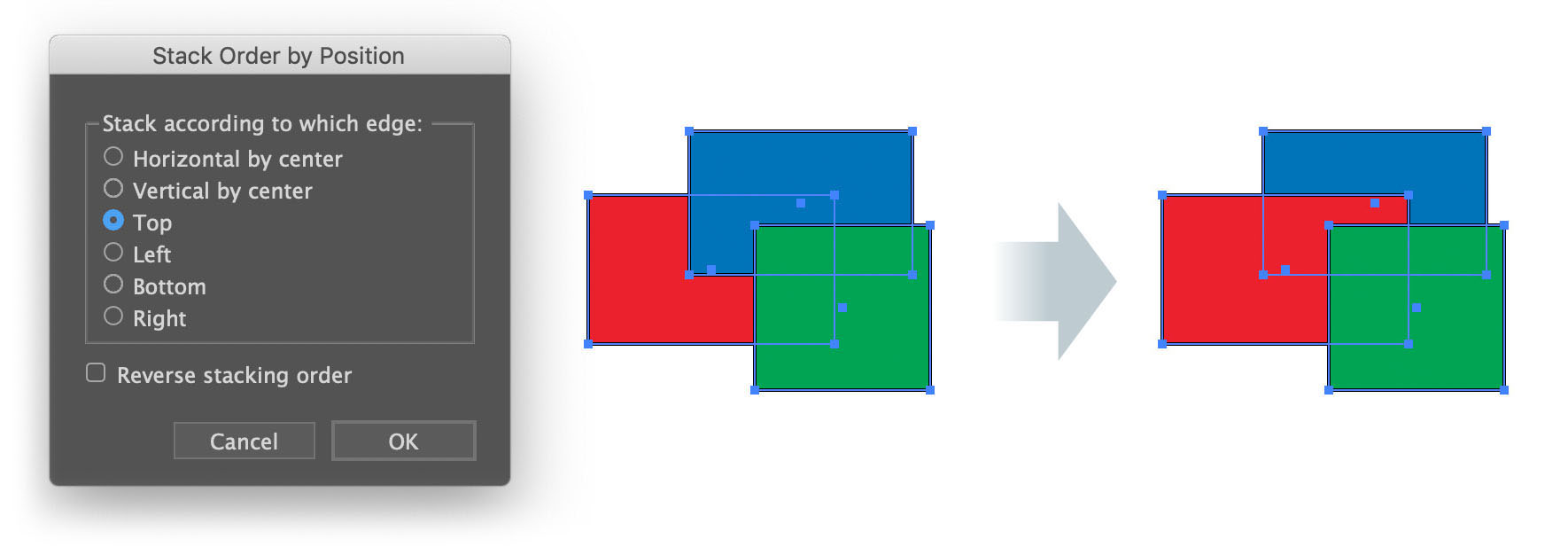
Have you ever needed to change the stacking (drawing) order of objects and used menu commands like Object > Arrange > Bring Forward or dragged them up or down in the Layers panel? Every once in a while, the order you need corresponds to the objects’ position on the page. With the latest version of ToolShed (16.3.7), there’s a new feature in the menu Object > Stacking Order… that addresses that.
Your alignment choices are, obviously, listed in the dialog shown above. The default stacking is bottom-to-top, but the checkbox in the dialog changes that to top-to-bottom. As you work, it helps to keep in mind Illustrator’s coordinate system, which is by default that positive values grow to the right or down. This may be confusing when stacking by the bottom edge, which is again measured from the ruler’s origin, not from below.
The following plugins are now compatible with Adobe Illustrator 2021:
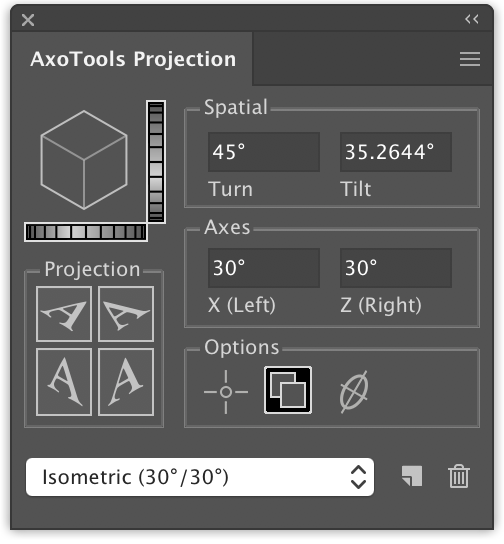
AxoTools
Cleanup Tool
Concatenate
Cutting Tools
Nudge Panel
Select Menu
Square Up
ToolShed
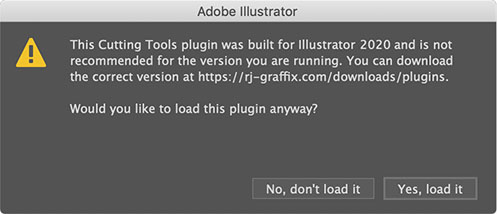
Other plugins may work as well. Just copy them into into the Plug-ins folder of Illustrator 2021. There’s no guarantee, but they probably will work. The first time you launch Illustrator with the older plugins present, you’ll see a dialog like this for each plugin:
Click the button “Yes, load it” to load the plugin. Illustrator will remember your choice, so you will not be asked again.
If you have trouble with an older plugin, simply remove it from Illustrator’s Plug-ins folder.
It’s an known issue that the panels may be larger than their contents. It’s easiest to fix this by setting the UI scaling to its smallest settings in Preferences > User Interface. More information in this post regarding UI issues in Windows may apply.
As always, please let me know if you encounter any problems with the plugins, or if you care to offer suggestions for improving them. I like feedback!
The process of doing isometric/axonometric drawings in Adobe Illustrator really hasn’t changed much since the mid 1990s, or even since the late 1980s, something I hadn’t fully realized until doing the first AxoTools video. How many of you can relate to this?
Working in Illustrator 88, I would project art to isometric by manually doing the scale-rotate-scale method. When the QuicKeys keyboard macro utility came out, it automated that process and also allowed me to change the constrain angle by pressing an otherwise-unused function key.
In 1994, when Illustrator 5 added support for plugins, I wrote one called Isometric that I shared free on my web site. It added menu items to project art to and from isometric planes, and to create box and cylinder primitives. Does anybody recall using this? I also wrote a free companion plugin Isometric Line Tool to draw straight lines in isometric, which was around quite a while and later merged into AxoTools.
In 1998, Illustrator 8 added recordable Actions, which was easier to maintain than updating the plugin as Illustrator’s API became more complicated. It also added Smart Guides, which I relied on when QuicKeys had compatibility issues with operating system changes.
About this time, Adobe had a simple 3D app called Dimensions (not the same as their current Dimensions product) that exported shapes to a file Illustrator could open. This app was the origin of the “Off Axis” projections I use in my Actions and in the current AxoTools presets. I used Dimensions in my first locomotive cutaway rendering. Unfortunately, it didn’t last long. Some of you may use SketchUp in that same way today.
Has anybody found Illustrator CS’s 3D effect actually useful for scale isometric drawings? I had high hopes when it appeared, but it never proved truly useful to me.
Hot Door’s CADtools has had support for isometric for several versions now, and in recent years supports axonometric views. I’ve found CADtools indispensable for technical drawing, but knew there had to be an easier way to assemble the pieces.
So for over 30 years, the process has been to project a shape to an isometric plane, then manually move it into position. This worked OK when one plane served as a sort of floor plan that other shapes could be snapped to, but it didn’t work well for most things I drew, like vehicles, machinery, and electronics. In order to get objects positioned correctly, I often drew a temporary “armature” with projected lines along two or three axes.
I’d actually envisioned today’s AxoTools plugin decades ago, using virtual armatures to position art and tools with custom constraints to move art along any defined axis. Using geometric formulas by Ron Kempke, it became possible to add support for any axonometric projection showing the left, right, and top views. Why it took so long, I’m sorry I can’t answer. I hope you agree that doing axonometric drawing in Adobe Illustrator is significantly easier than ever with AxoTools.
I was recently contacted by Iván Gómez about doing videos on my plugins. Iván is a certified Adobe instructor in Columbia who has done many other videos on various aspects of Illustrator, Photoshop, and InDesign, which are available on YouTube. He chose to do a video on AxoTools, which is very informative. I have an AxoTools video in progress also, but it won’t be available until after the next AxoTools update featuring a few new tools.
If you’re interested in AxoTools, please watch this as it demonstrates some important concepts:
Overview of isometric, dimetric, and trimetric projections
Setting and changing the orientation of your projection
Placing and moving common reference points
Projecting using buttons in the panel, using menus, or custom keyboard shortcuts
Moving objects in the axonometric view by dragging in an orthographic view
Using the AxoDraw tool to draw constrained lines
Using the AxoScale and AxoRotate tools to modify projected art
Viewers can also benefit from a coupon code shown in the video, good for 20% off any Graffix plugins during August 2020.
Thanks, Iván, for doing the video I must confess I should have done months ago!
All Graffix plugins for Adobe Illustrator are now optimized for Illustrator 2020 for both Mac and Windows, and available for download, with the exception of ServerLock. That update is in progress. IsoTool is not updated, but its functions are now built into AxoTools — The drawing tool from IsoTool will continue to work for free in AxoTools without licensing.
I’m happy to report that all Graffix plugins (except for ServerLock, for now) are notarized for use with macOS 10.15 Catalina, Apple’s new all 64-bit OS. This applies only to plugins compiled for Illustrator 2019 and 2020.
In the meantime, here’s a workaround for older versions and — temporarily — for ServerLock. I won’t go so far as to say that I recommend this, but both have worked for me and for other users.
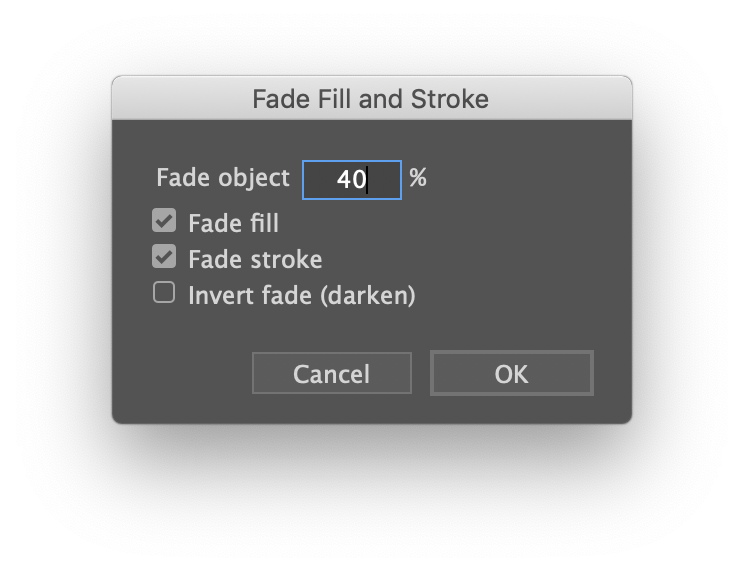
ToolShed has a new function to fade the fill and/or stroke of a path object. Its appearance would be similar to an object whose opacity has been changed except that the opacity remains unchanged. Only the colors are lightened.
If the object had previously been faded, you can check “Invert fade” to darken the colors , equivalent to undoing a previous fade long after Undo no longer appeared in the Edit menu. Fade is added to the FREE functions of the plugin, and will continue to work even if the plugin is never activated.
This function can be called by selecting Fade… from the Object menu.
You can download it here. Each trial period includes 1,000 free uses of all features which you can use at your leisure, with no time constraints.
If you create technical illustrations, you probably use CADtools. I use it, and wouldn’t consider doing the work that I do without it. There are times, however, when I wish I had tools that are a little less technical and let me work more visually. Then again, I still need precision, especially when it comes to getting the pieces of a technical drawing correctly oriented to each other. I have drawings, of course, that show these spatial relationships in top and side views, but how does one translate that to Illustrator artwork?
I established a couple of rules for my plan. OK, guidelines, but firm guidelines. I really don’t want to measure things and type numbers into dialogs. Even worse, I don’t want to then have to do math on those measurements to account for foreshortening and other factors. Over time, a method of achieving this slowly took shape.
It all hit critical mass when I met Ron Kempke. Actually, he found me, asking if I could write a plugin that simplified entering into Illustrator the equations he’d worked out over decades of doing technical drawings. His samples were definitely cool, but it was a real stretch for me to grasp the meaning of Sigma, Psi, Beta, Gamma, and an assortment of Greek characters he used to define these concepts. After a few conversations and exchanges of annotated diagrams, it looked pretty hopeful for translating those equations into C++ code, then wrapping a user interface around it to let illustrators like lazy me use the math without having to think about it. And not just for isometric, but for any off-axis view one may want.
Enter AxoTools.
The gist of the idea is that illustrators identify common reference points in each view of their drawings that refer to the same point in 3D space as well as a point in the axonometric view that’s comprised of those drawings. As a result, we can make some otherwise cumbersome things happen quite easily.
Artwork projected to a corresponding plane can be created in place so that the adjoining surfaces automatically meet where they should.
Artwork can be created wherever it’s convenient, then moved or modified by dragging a tool a corresponding distance and direction on an ortho view.
When one reference point is moved, all other reference points are automatically moved accordingly so relationships between them last.
A few other tools are included to round out the package:
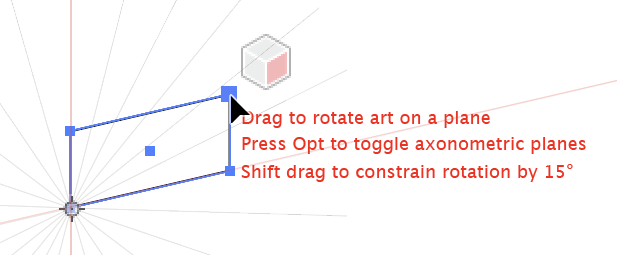
Axo Rotate tool allows you to rotate an object within the axonometric plane it’s in. The tool displays a protractor for that plane, and allows you to press Shift to constrain the rotation to increments of 15 degrees.
Axo Scale tool can scale an object along the X, Y, or Z axis.
Axo Draw tool draws lines constrained to the current axes, automatically concatenating them as you go.
The Axo Tool that defines and moves reference points also moves selected art or individual anchor points constrained to the nearest axis.
Questions? Concerns?
I have too many panels hogging my screen space, so I don’t want to add still more. No problem, you can collapse the panel to just the projection options and do your projections with menu commands.
Navigating menus is too slow, and I want to work quickly. No problem, part of the purpose of having menu counterparts is to enable keyboard shortcuts. This makes the process very quick!
Scrolling around a large artboard between the various views is cumbersome with or without AxoTools. No problem, AxoTools adds menus for quickly going to any of your defined views, and using keyboard shortcuts, that’s now very fast.
Can I define my axonometric view in CADtools and use AxoTools to project and position my art? Yes, AxoTools can import the axonometric settings from CADtools 11.01 or later. AxoTools was designed to complement CADtools by providing a more fluid way to work, alongside the precision of CADtools.
Can AxoTools export my projected art to a 3D file format? Sorry, no, AxoTools is not real 3D for Adobe Illustrator, but its tools for projecting and moving art make it a lot easier for technical illustrators who need to think 3D in a 2D environment.
AxoTools is now available on the plugin download page, available for Illustrator CS6 and CC for Mac and Windows. I hope you find it as indispensable in your workflow as I find it in mine!