Iván Gómez S. [PROFEIVAN] has produced an excellent video on YouTube demonstrating AxoTools’ Perspective panel. He has done other videos on AxoTools, which are all nicely done and clearly walk users through demo projects. Please check out the videos and support this channel on YouTube.
Note: The gear icon at the bottom brings up a menu to choose an audio track with English or Spanish.
AxoTools’ new Perspective grid has added a couple of new utility functions in a flyout menu.
Define 3-pt. grid
Defining a perspective grid in Adobe Illustrator has long been a bit of a puzzle. Illustrators have an idea of how we want our art oriented, but the fields in Adobe’s Define Perspective Grid dialog seem to have been geared to serve the software, not the user. AxoTools now makes that process a bit easier by offering a sort of visualizer for defining a three-point perspective.
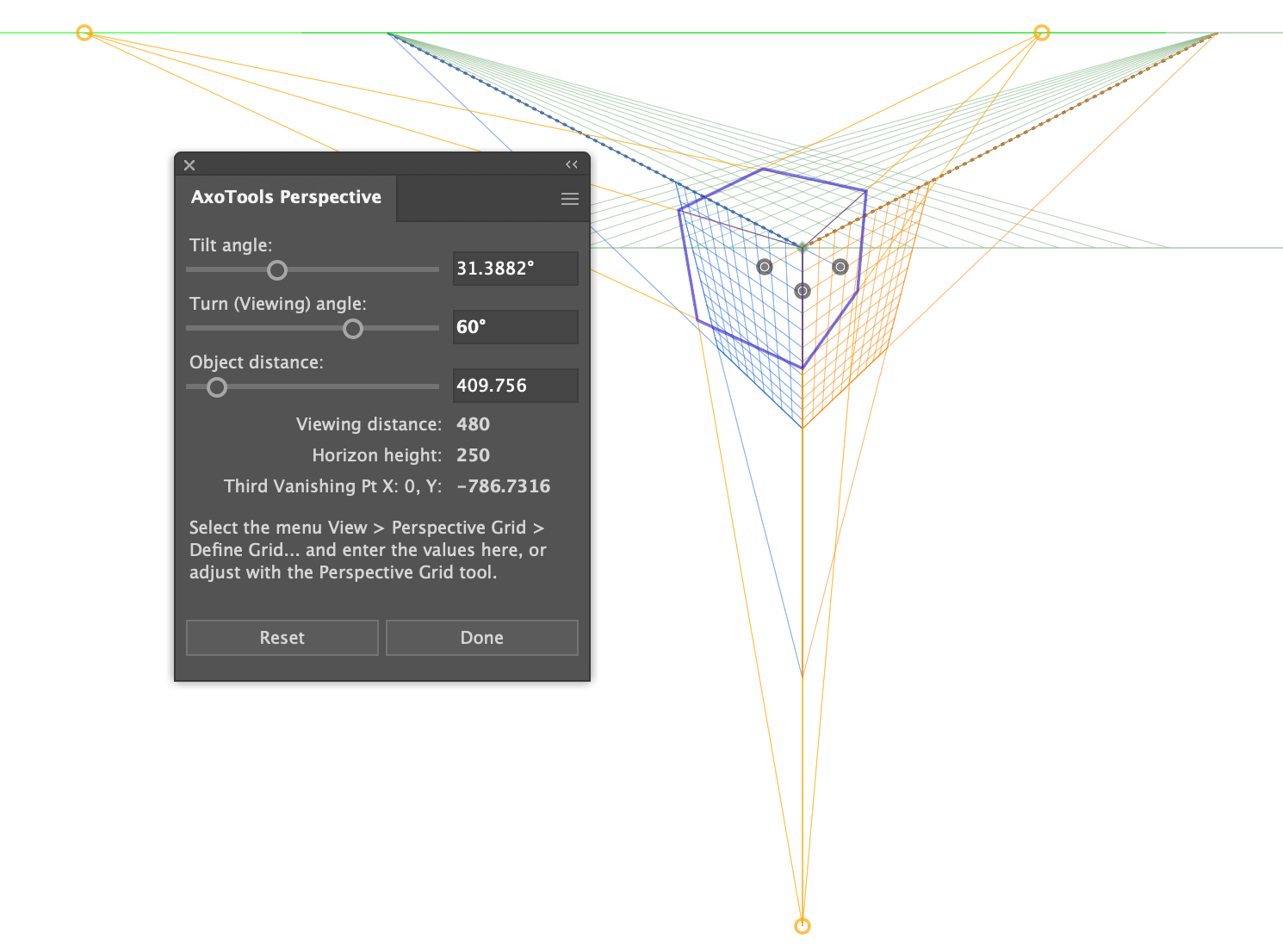
Select “Define 3-pt. grid” from the flyout menu and the Perspective panel changes to show an alternate group of settings. You’re already familiar with the axonometric projection’s Tilt and Turn method of rotating your art, so this utility draws on that method. Rather than drawing a small proxy cube, however, the panel draws the cube and the lines to the vanishing points right on the artboard, aligned with your current perspective grid. You can hide the current grid (Shift-Ctrl/Cmd-I) to see your changes without distractions. Simply drag the sliders to change your top angle, side angle, and wide-angle/telephoto effect.
One significant advantage here is that AxoTools will calculate a geometrically-correct location for the bottom (third) vanishing point, helping to relieve much of the distortion we see in Illustrator’s perspective art.
Unfortunately, there is no way for a plugin to make these adjustments to Illustrator’s built-in perspective grid, so you have a couple of options. You can often use the Perspective Grid tool to adjust Illustrator’s grid to approximate the panel’s settings, but the most reliable method is to enter four of the values shown here into the Define Perspective Grid dialog.
Adobe’s developer SDK for Illustrator provides third-party plugins access to placing path art on a perspective grid, but adding text or symbols to it are handled by other built-in Adobe plugins. That means they have to be added with Adobe’s native tools, and thus subject to the distortion we get in side planes of three-point grids and all planes of one-point grids. To correct the proportions of those art types, or any art previously added to a perspective grid, simply select the art on the grid, then select this item from the Perspective panel’s flyout menu.
These two functions are FREE and will continue to work after the trial period has expired.
I hope you find them useful and help make Illustrator’s perspective grid easier to use.
It’s hard to believe that Adobe Illustrator’s perspective grid was released way back in 2010 for version CS5! I recall being excited about it for my work as a technical illustrator. Unfortunately, it was a bit clumsy to use efficiently or precisely, and the projected art was often distorted. Over time I came to ignore the grid and just winged it on my own, or worked in isometric instead.
Ron Kempke, the man behind the math for AxoTools, had come up with formulas to correct the projection errors as well as some amazing feats I never expected could be done with the perspective grid.
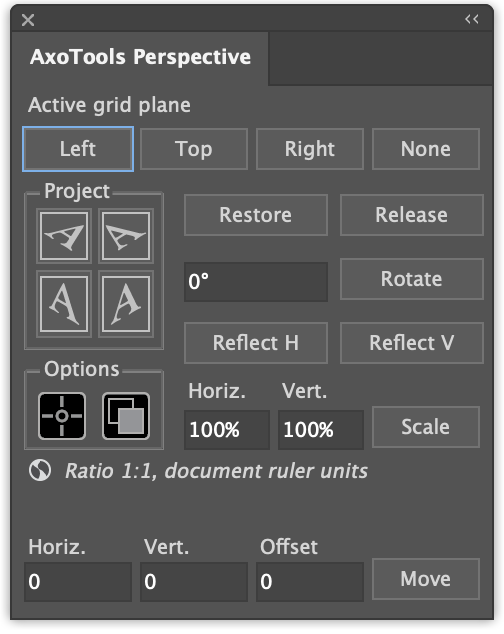
The interface we came up with should feel familiar to AxoTools users, and (I hope) intuitive for first-time users. The first row of buttons across the top of the AxoTools Perspective panel replace Adobe’s round floating widget for choosing an active grid plane, which appears in the upper-left corner of the screen where it’s usually hidden behind the tool box and panels — and I have’t found a way to move it!
There’s a cluster of buttons to project art to a perspective plane, where it appears in a front corner of the grid. You also have the option to use the Axo Zone tool to set up left/right/top views with markers for the grid plane and an offset plane, allowing you to project-in-place, as with this house.
The Restore button will retrieve your unprojected art from the grid, and the Release button will detach it from the grid as ordinary art.
The remainder of the controls allow you to scale, rotate, reflect, and move art on its perspective plane, again compensating for any distortion.
Everything except for the project-in-place functions are free, and will continue to work after the trial period is over.
If these tools sound useful to you, please download AxoTools for Adobe Illustrator 2021-2026 and leave a comment below.
For a couple of years now I’ve had a set of Notes panels in progress for ToolShed, but hadn’t released it because of ongoing display issues with the Windows versions. Since Adobe is rolling out beta features, I figured I might as well do so also, since the Document Notes panel in particular has been really useful for me.
There are three panels you call from Illustrator’s Windows menu, in the Notes menu group. First and probably most useful is the Document Notes panel.
This resizable panel displays text that is attached to the document. I use it to paste instructions sent in an email, which can be visible regardless of where I scroll in the document. It’s especially helpful for a list of callouts that need to be cut or copied out and pasted into the document. The text frame supports text styles and colors, and I can’t change that, so I added a button to remove all formatting from the text to make it easier to read.
In Illustrator’s Attributes panel, you can add notes to any selected artwork. The Artwork Notes panel gathers a list of all art that has notes attached, and displays them in a list.
You have two options. You can Alt/Option-click on the item to select it, or double-click it to edit the note in a dialog (you can also edit it in the Attributes panel).
Next is a Layer Notes panel where you can assign notes to layers. Alt/Option-click on the item to select the layer, or double-click a row to bring up a dialog to edit the note.
I hope you find these additional features helpful. If you have suggestions on how to improve it, please let me know. Many of my plugin features came from user requests.
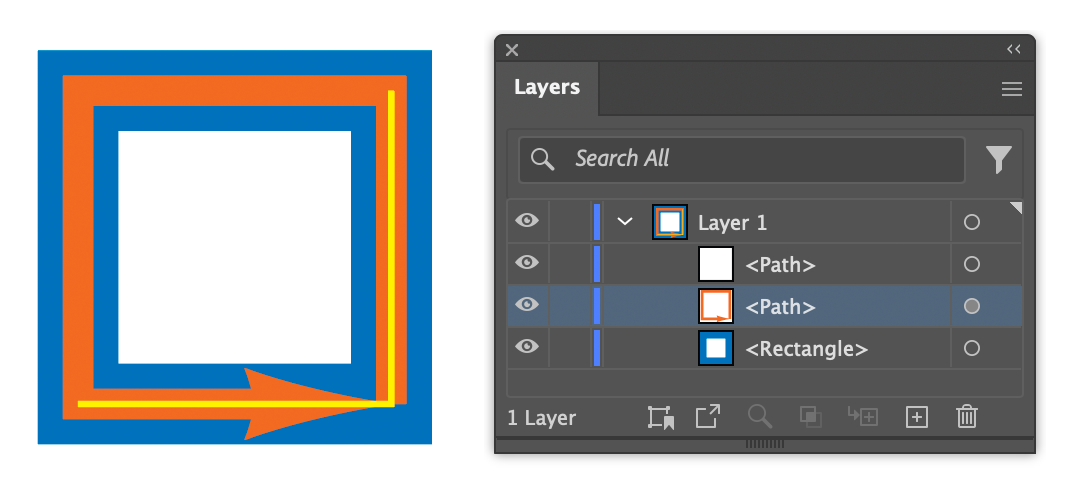
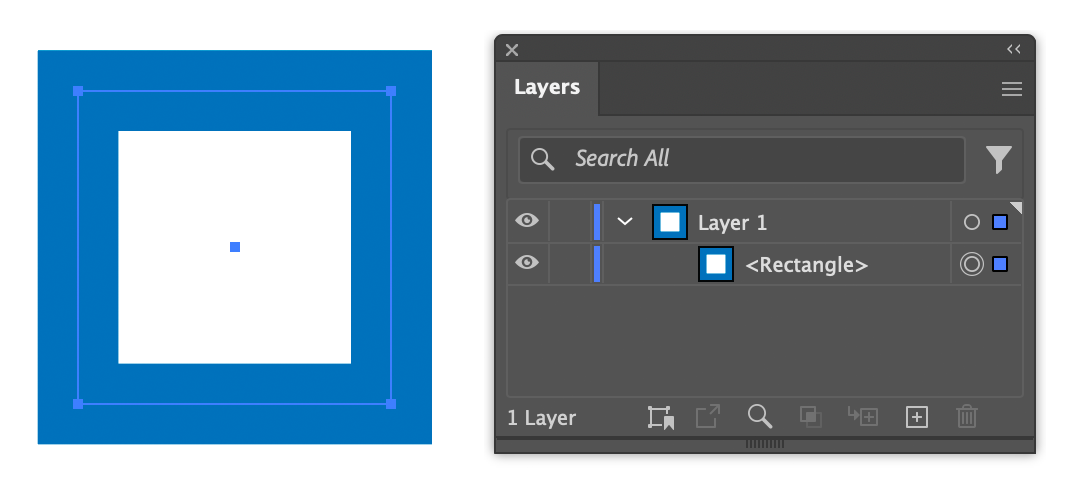
ToolShed has added a new feature in a free update: Remove Duplicate Paths. Here’s how it works. In this exercise we have a blue rectangle, an orange open path with four segments directly on the rectangle’s sides, and a yellow path over two of the segments. You can select paths to evaluate for duplicate paths, but since this test document has only these three paths, you can choose Object > Path > Remove Duplicate Paths with nothing selected to parse all paths in the document.
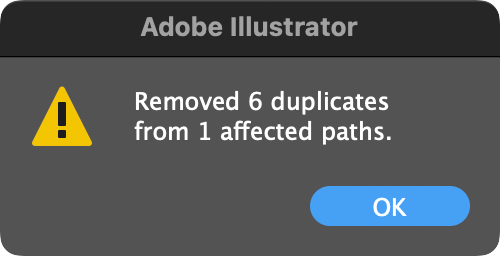
A dialog will inform you that it removed six duplicate segments, or four from the orange path and two from the yellow path.
The blue path was found to have duplicate segments, so it has been selected.
Note that the path on the bottom is preserved, and identical segments above it are removed.
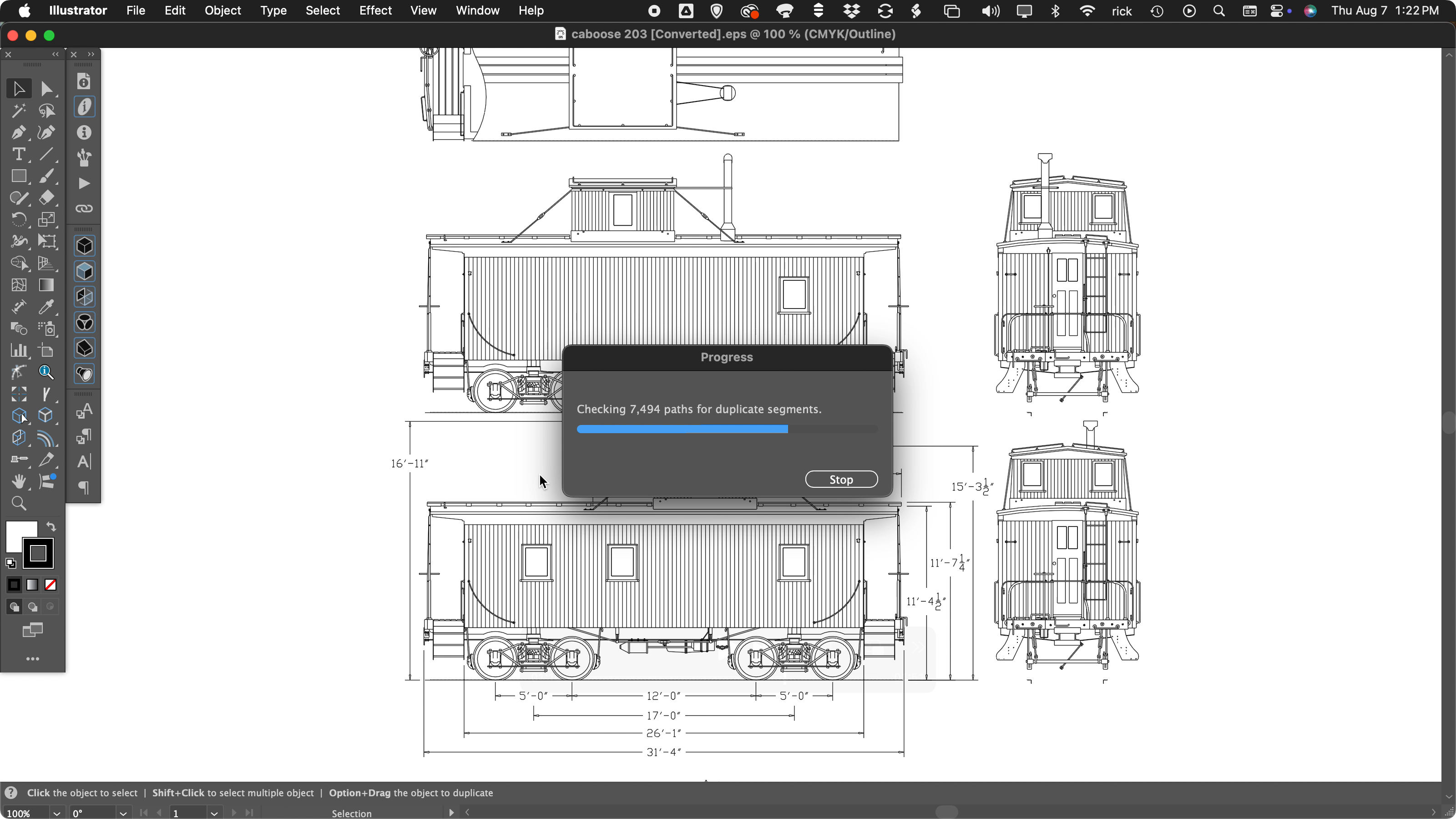
Here is an example of a more complex file, which is probably more typical of where you would use this feature. A CAD drawing of a historic railroad caboose was imported into Adobe Illustrator, and we’ll check for duplicate paths. Because there are so many paths in this file, you will be given a progress dialog.
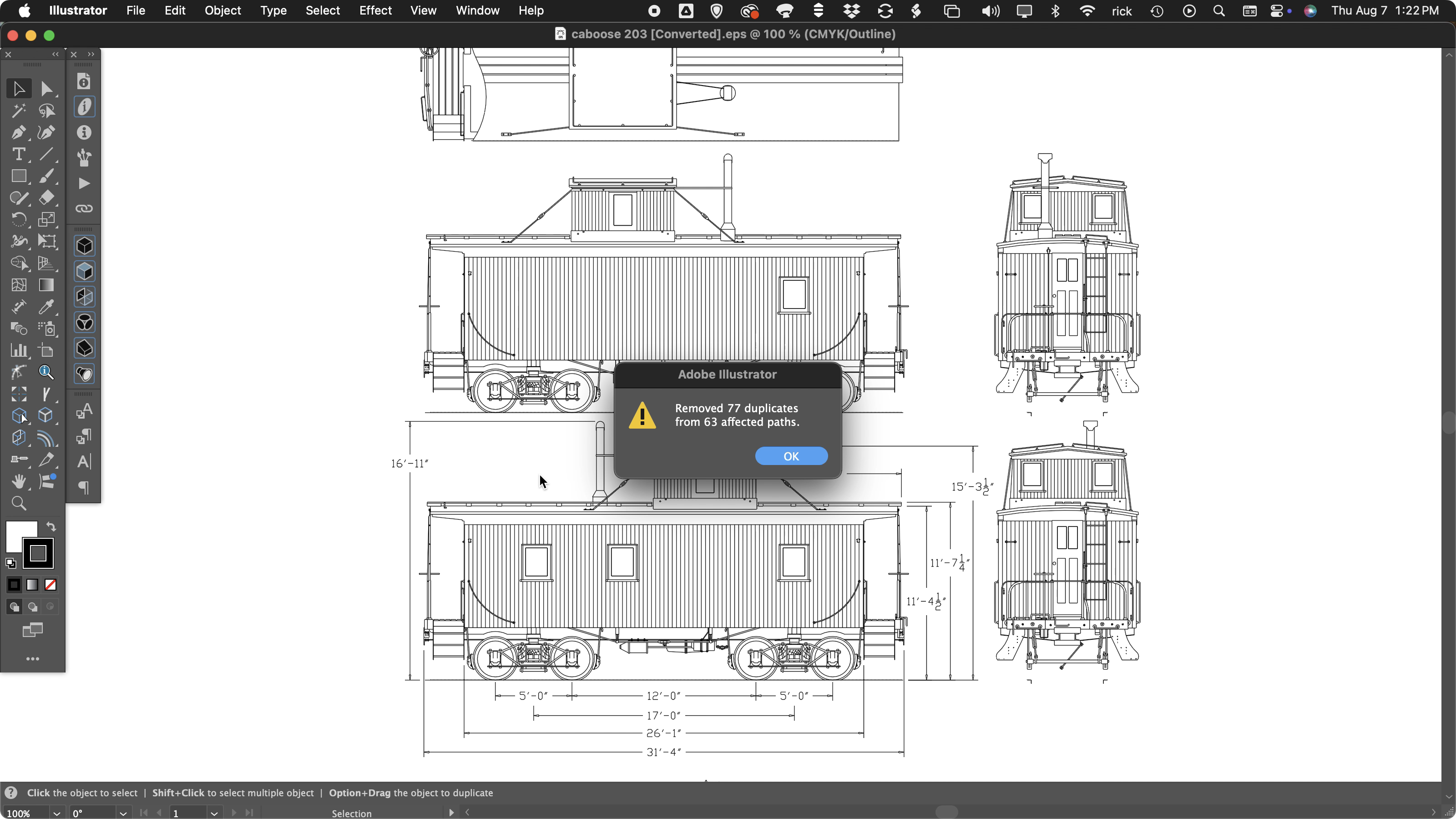
When it finishes, you will be shown how many duplicates were found.
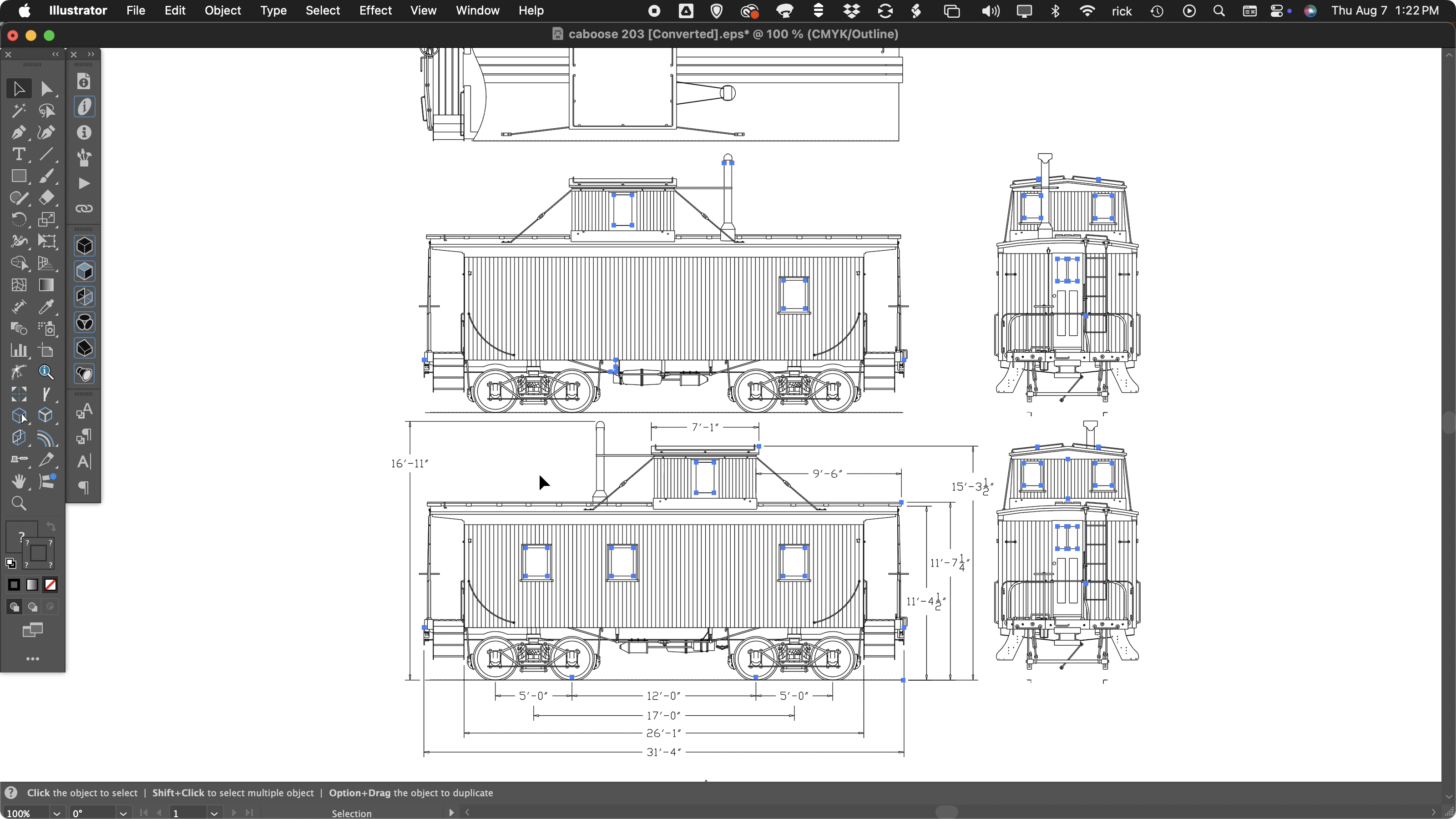
Finally, you will see the selected paths where the duplicate paths were found.
In this case, we can see that the paths with duplicate segments were areas with a filled, non-stroked path, so the presence of duplicate segments is OK. We can simply Undo the operation and be assured that we have a clean drawing to work with.
As with other ToolShed functions, it can be recorded as part of an Action and assigned a keyboard shortcut to streamline your workflow. I recommend using the free Select Menu plugin to lock or hide paths that you don’t want parsed for possible deletion.
Download ToolShed now, or simply click the Update button when your current ToolShed plugin prompts you for the update. Remove Duplicate Paths added to ToolShed plugin for Adobe Illustrator 2022-2025 only.
ToolShed v. 25.1.1 now has an improved Offset Open Path tool and menu function. Here’s what makes it great:
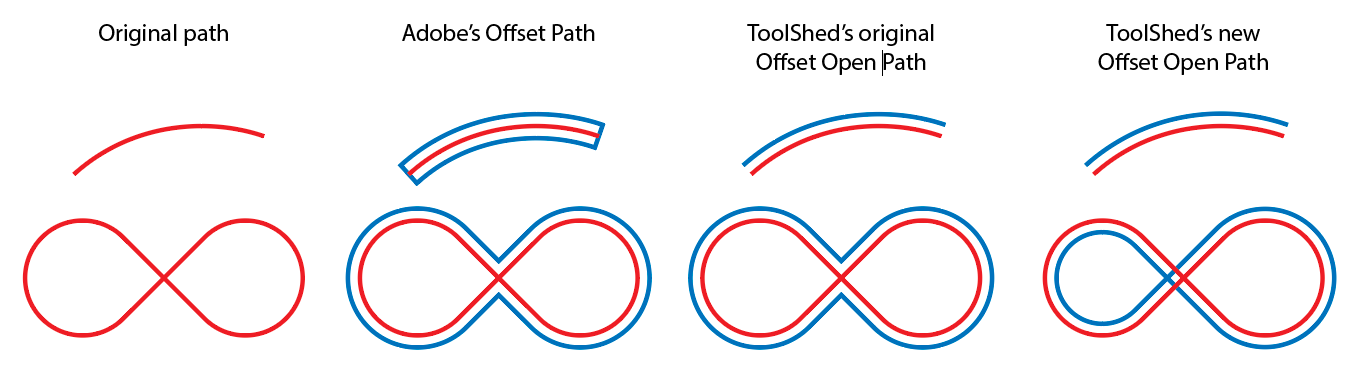
When you use Adobe Illustrator’s built-in Offset Path function (Object > Path > Offset Path…) on an open path, it offsets the path in both directions, then connects the end points. If the path happens to cross over itself, it treats it as a shape. ToolShed’s original Offset Open Path (Object > Path > Offset Open Path…) called Adobe’s function, then trimmed away the excess segments. The new version offsets a path that’s more true to the original. An open path now offsets as another open path, even if the path crosses over itself.
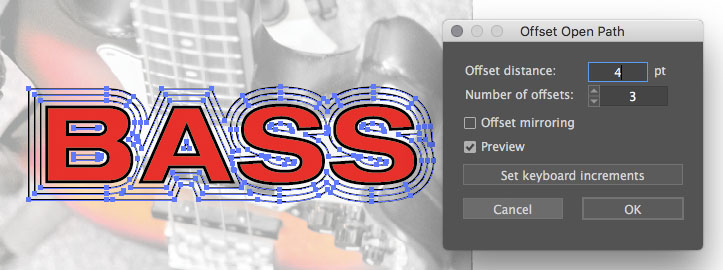
Offset Open Path works as both a menu item with dialog and as a tool. Click on a path to drag an offset copy. As you drag, press Alt or Option to offset paths on both sides of your path. Press Shift to flip the offset path from one side or the other. Press the Up Arrow key to add additional offset paths between the original path and the new one you’re dragging out of it. Before releasing the mouse, press Control (Windows) or Command (Mac) to delete the original path and leave only the copy/copies.
When used on a compound path, it creates offset copies of every path in the compound. The new offset paths are also combined into a new compound path.
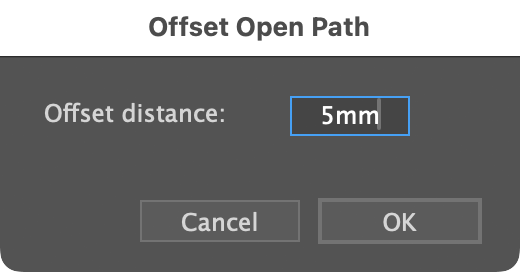
Click on a path to bring up the Offset Open Path dialog. It does not matter whether the path is selected.
Here you can enter the distance of the offset, as well as the number of times to offset the path. You can enter the offset distance in terms of mm, cm, points, pixels, or inches, regardless of your current ruler units. You can even express it as a simple equation, such as 25.4mm/4 or 1-1/2″.
Check “Preview” to see a preview of the offset paths.
Press Up/Down Arrow keys to increase/decrease the value.
Click OK to apply the offset paths, or press the Esc key or click Cancel to cancel the operation.
Both the tool and dialog work on all selected paths.
And there’s one more key feature: It continues to work for FREE when the trial ends! The dialog is simplified to just an offset value and the tool is disabled, but it works as an open-path counterpart to Adobe’s version. Long-time users may recall that Adobe Illustrator’s Offset Path function offset open paths until about 1996, when it changed to the closed-path behavior we see now. It took nearly thirty years, but I’m pretty happy to be able to give back what Adobe took away from us!
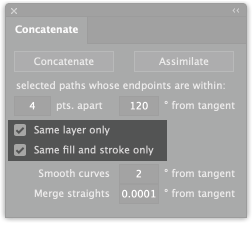
When concatenating paths with the Concatenate plugin, you control the operation by setting distance and angle tolerances, but of course you first select the paths to potentially combine. Sometimes it’s not that easy to choose only the paths you want. After all, simplifying documents with many small pieces is a main purpose of Concatenate.
You can ignore certain paths by hiding or locking them before making your selection, but that task has just become a bit easier. Concatenate v. 25.1.2 adds two options to refine the operation to use only the paths you want concatenated.
One checkbox now lets you limit the operation to only paths that are on the same layer. Another checkbox tells Concatenate to also compare the fill color, stroke color, and stroke width.
If you need even more control over which paths are concatenated, you might try selecting them with SelectMenu (free) or my favorite selection power tool, NitPicker from Hot Door.
I hope these refinements make your daily work faster and simpler.
I recently received a support email asking if it were possible for the Select Menu plugin to automatically select certain art types every time a document is opened. That feature was built into the plugin Select Effects by Worker72a, which is no longer available. The four effects types in Select Effects are also in the latest free version of Select Menu, and what they called “Autoscan” is possible using the Worker72a plugin Tag72a, available here at Graffix.
Tag72a can automatically run scripts at several events such as opening or closing a document, and to simplify things, a script can simply run an Action you record. So no scripting skills are required!
Here’s how to do it:
Record an Action in Adobe Illustrator doing whatever you want Illustrator to do when you open a document.
Name the action “on_open” and make sure that it is in the Default Actions set.
Quit Illustrator.
Download this sample script file, unzip it, and place the file “Tag72a_doc_open.jsx” in your Scripts folder (not the Scripting folder, but the one in your Presets folder).
Install the plugin file Tag72a.aip in your Plug-ins folder.
Launch Illustrator.
Open the Tag72a panel from the Windows menu, and make sure that the “Run user scripts” item at the bottom of the Tag72a panel is checked.
Now anything you record into the Action “on_open” will automatically happen every time you open a document.
For those of you comfortable with scripting, here’s the JavaScript code:
if (documents.length > 0){ // if a document is open
    // Define the action set and action name
    actionSet = "Default Actions"; // Replace this with the actual name of your action set
    actionName = "on_open"; // The name of the action to run
    // Run the action
    app.doScript(actionName, actionSet);
}
More information on the auto-run scripts with Tag72a is available here in the Tag72a online documentation. Tag72a is not free, but it does come with 500 free trial uses, so you can test it at your leisure.

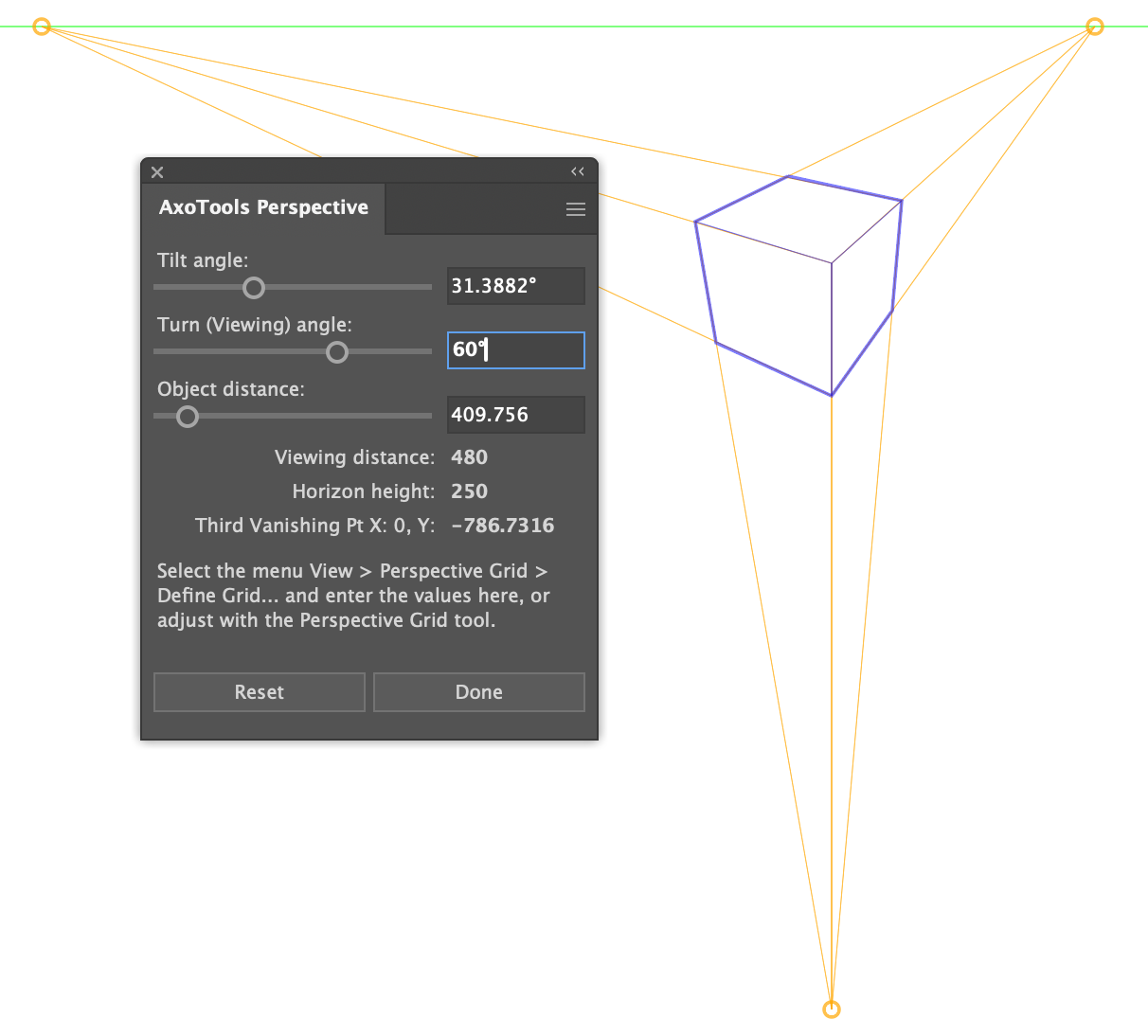 Defining a perspective grid in Adobe Illustrator has long been a bit of a puzzle. Illustrators have an idea of how we want our art oriented, but the fields in Adobe’s Define Perspective Grid dialog seem to have been geared to serve the software, not the user.
 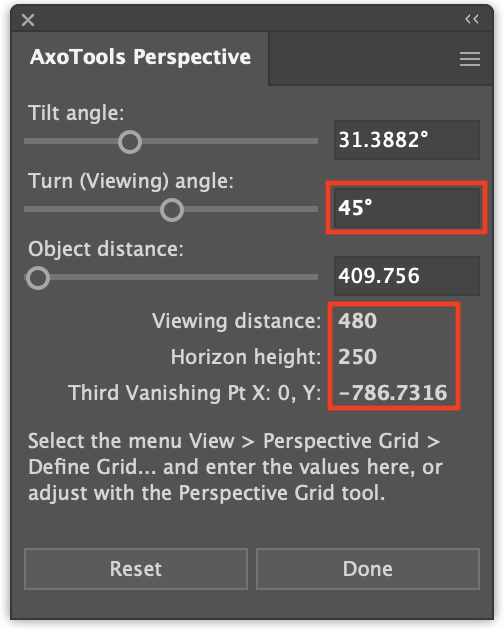 One significant advantage here is that AxoTools will calculate a geometrically-correct location for the bottom (third) vanishing point, helping to relieve much of the distortion we see in Illustrator’s perspective art.
 It’s hard to believe that Adobe Illustrator’s perspective grid was released way back in 2010 for version CS5! I recall being excited about it for my work as a technical illustrator. Unfortunately, it was a bit clumsy to use efficiently or precisely, and the projected art was often distorted. Over time I came to ignore the grid and just winged it on my own, or worked in isometric instead.
 The
The 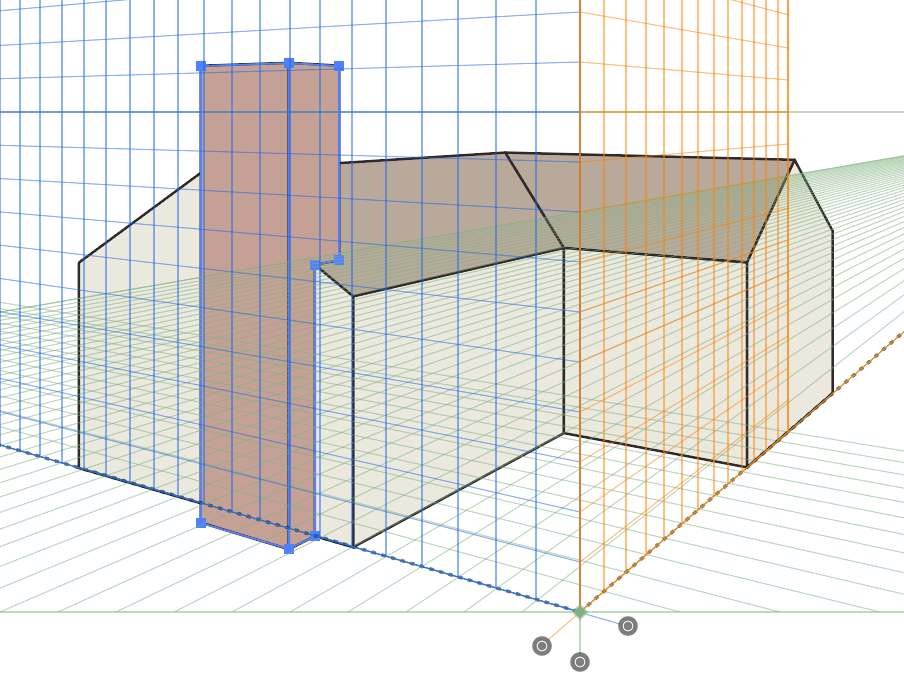



 When used on a compound path, it creates offset copies of every path in the compound. The new offset paths are also combined into a new compound path.
 And there’s one more key feature: It continues to work for