
Cutting Tools CC now available
What’s your least favorite tool in Adobe Illustrator? Don’t get me wrong, Illustrator is an amazing piece of software, but with so many great features, something’s bound to be, um, less great. For me, that bit of mediocrity is the Scissors tool. Without a doubt, it performs a very necessary function, but I long wished I could get around the error message “Please use the scissors tool on a segment or anchor point (but not an endpoint) of a path.” It’s possible, of course, to dismiss the dialog and choose not see it again, but the finicky behavior is still there, making it a hassle to trim stacked or intersecting paths.


In 2001 I finished the first version of Cutting Tools, beginning with the Hatchet tool, designed not to throw up its hands and abandon the job site if the top path at that location happens to be an endpoint. There’s often another path under there, or maybe several, which I’d like to slice through in one fell “thwack!” Next I added the Table Saw and Saber Saw, which accommodated even more path destruction in one gesture. Once I had amassed a collection of leftover paths to clear away, either extreme laziness or a desire for efficiency inspired a quick-delete tool. I soon added a shortcut from the Hatchet so I could sever and sweep in one move of the stylus. Early versions of the Vector Vac animated the vectors spinning and shrinking as they got pulled into the vacuum. At first the effect was fun, but it soon just seemed silly.
Although it was the first of my plugins to rewrite for CS6 and CC, Cutting Tools’ multiple iterators and mutable arrays took a little time to tame, but the plugin is now updated and ready to be cut loose. I hope you find it useful. The plugin comes pre-loaded with a thousand trial uses for your evaluation. Really, 1,000! You may never want to run [Illustrator] with scissors again.

(Still half off with the coupon code PRERELEASE50)
 When I draw a floor plan and place a pattern of a grid drawn at a given architectural scale behind it, I want the upper-left corner to align with the grid. How useful would a grid be, really, if it were simply plopped randomly behind the art? To use the plugin, I select the path with the pattern fill and click on one of the eight directional triangles to move the pattern left, right, up, down, or diagonally by one point. If I press the Command/Control key, the movement is divided in half, or the Option/Alt key will divide the moment by four. On a Mac, pressing the Control key while clicking will divide the distance by eight, and holding combinations of these keys will combine the effects so that I can make adjustments of 1/64 of a point. Pressing the shift key, too, will make each key work as a multiplier to move the pattern farther with each click.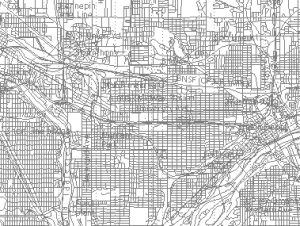
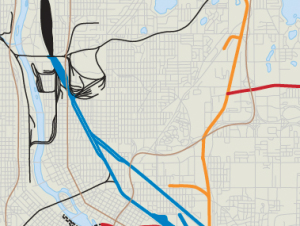
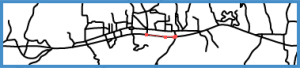 As this image of small-town streets and highways here shows, GIS data is similar to imported CAD data in that it’s made up of many short paths laid end-to-end. Generally, the paths end at every point where they meet or cross another path.
 By selecting one or more paths, I used Concatenate’s Assimilate function to join the paths whose endpoints were within 0.25 points apart and within 10° of tangent. By adjusting this setting, I could control which paths were concatenated, restricting it to those that formed a fairly straight line. A second pass concatenated the other side of the divided highway. Now this main road can be given a prominent style and the secondary roads made lighter and/or thinner.
 Whew!
Whew!
 The first Graffix plugin for Illustrator CS6,